 Tabfinity
New tabBy the Tabfinity team ·
How to customize your Chrome new tab page
What Chrome lets you change natively, and how a new tab extension takes the page further: widgets, backgrounds, search, and your own tools.
What Chrome lets you do natively
Out of the box, Chrome's new tab offers a search box, a background from Chrome's gallery, and shortcuts to the sites you visit most. For a browser's default page it is tidy; as the screen you see dozens of times a day, it gives you a glance and nothing more.
Everything meaningful you keep, your pages, your notes, your own tools, needs to live somewhere else. In stock Chrome, customization starts and ends with a wallpaper.
Why people replace the page
The new tab is the highest-frequency page in the browser, and attention spent landing somewhere is worth reusing. Replacing it trades a page you glance past for a page that opens with your own structure: the sites you keep returning to, the note you just took, the small tool you would otherwise open a separate site for.
The reason this works in practice is that a good replacement changes what you can do in the moment you have nothing open, rather than only what you see.
Your options: start pages, dashboards, workspaces
Extensions in the Chrome Web Store replace this page wholesale. Most fall into rough groups: start pages that curate links, dashboards that stack widgets, and workspaces that organize your data. What separates them is what happens to your information: some keep it on their own servers, and some build on what Chrome already stores for you.
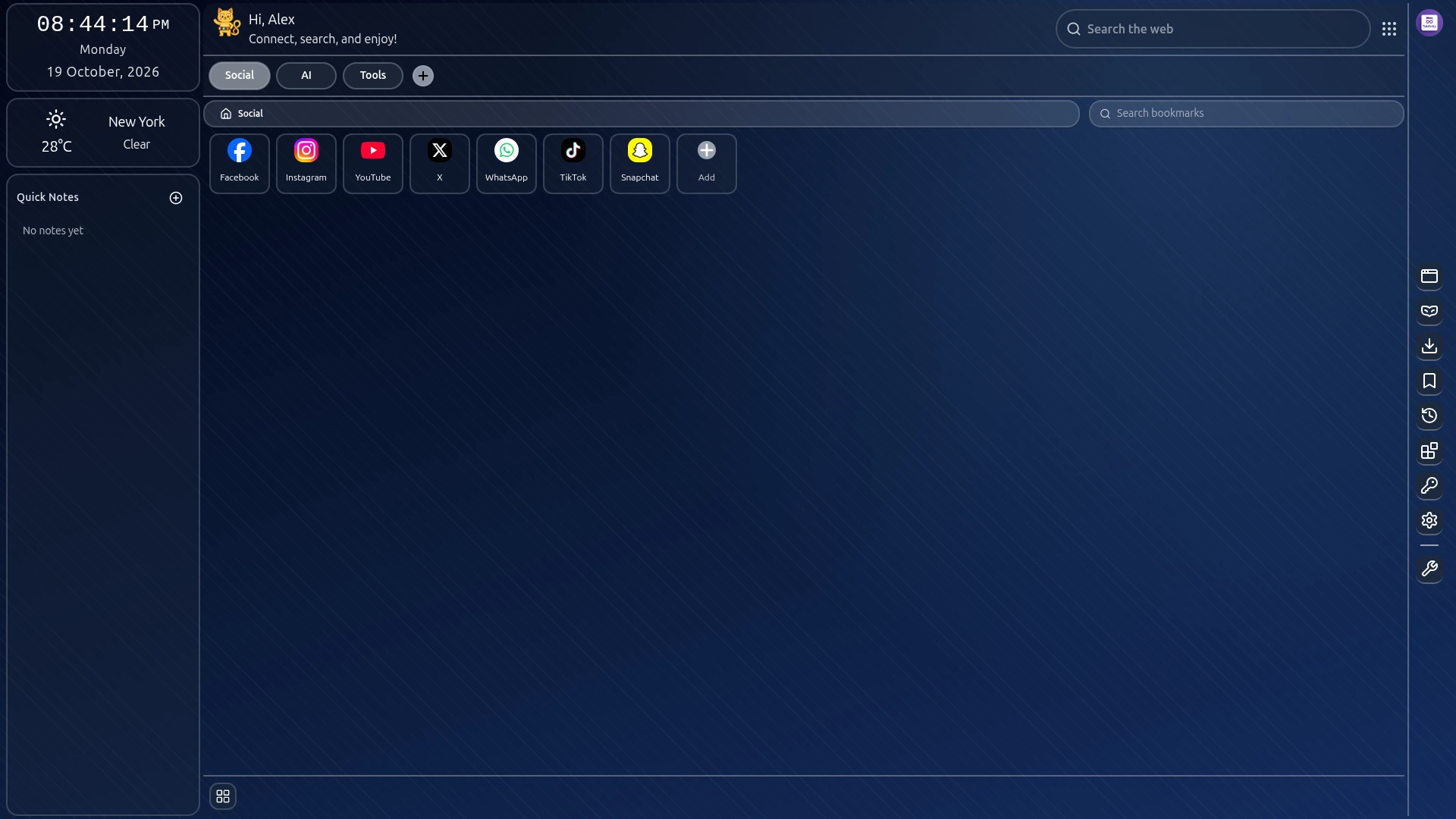
Tabfinity is in the third group, and on Chrome's storage. It opens with every new tab as a workspace: a clock with the date, an optional weather widget, quick notes, a search bar, and your bookmarks organized into tabs and folders.
Read next: The tabs and folders structure
Setting Tabfinity as your new tab, in real steps
There are no configuration screens to visit and no settings to hunt for: installing the extension from the Chrome Web Store is the whole setup. Chrome hands the new tab over when the extension is installed, and every new tab after that opens the workspace.
From there the page is yours to shape. Open the workspace and arrange its tabs and folders around work, home, and side projects. Pick a built-in wallpaper or a gradient preset in the background settings; with Premium, upload your own image. Save your first bookmark into the tab it belongs to, and the system is running.