 Tabfinity
BookmarksBy the Tabfinity team ·
How to organize Chrome bookmarks: folders, tabs, and a system that lasts
Folders, tabs, and a habit that lasts: a practical system for organizing your Chrome bookmarks, and the new tab page that keeps it alive.
Why the default bookmark bar breaks down
Chrome saves bookmarks in one flat list: every save lands on the bookmark bar or in Other bookmarks, in the order you pressed save, and the list only ever grows. Six months in, the bar is a wall of similar titles, and the page you meant to come back to is buried in the middle of it.
The usual fixes are cosmetic: renaming, emoji prefixes, dragging three favorites to the front. None of them changes the shape. A single dimension of order cannot answer "where did I put it?" for work, home, and the rest of your life at once.
What Chrome already gives you
Chrome ships real tools for this. Folders group related pages. The bookmark manager (Ctrl+Shift+O) renames, moves, and deletes in bulk. And Chrome Sync carries the whole tree to every computer you sign into Chrome on.
The gap is not capability, it is place. The manager lives two menus deep, so organizing happens rarely, while saving happens daily. A system lasts only when the place you read your bookmarks is the same place you arrange them.
A system: work, home, and side projects
Split your bookmarks the way your life splits. A tab for work, a tab for home, one for any project that has a deadline this year. Inside each tab, folders hold the detail, and the tab you are in decides which set you see. On a new tab you are in work; home does not shout over it.
The rule that makes it last: save into the tab it belongs to, in the same pass, and move anything misplaced the moment you notice it. Two minutes of placing beats an hour of excavating later.
Read next: How tabs and folders work in the workspace
Making the new tab do the organizing
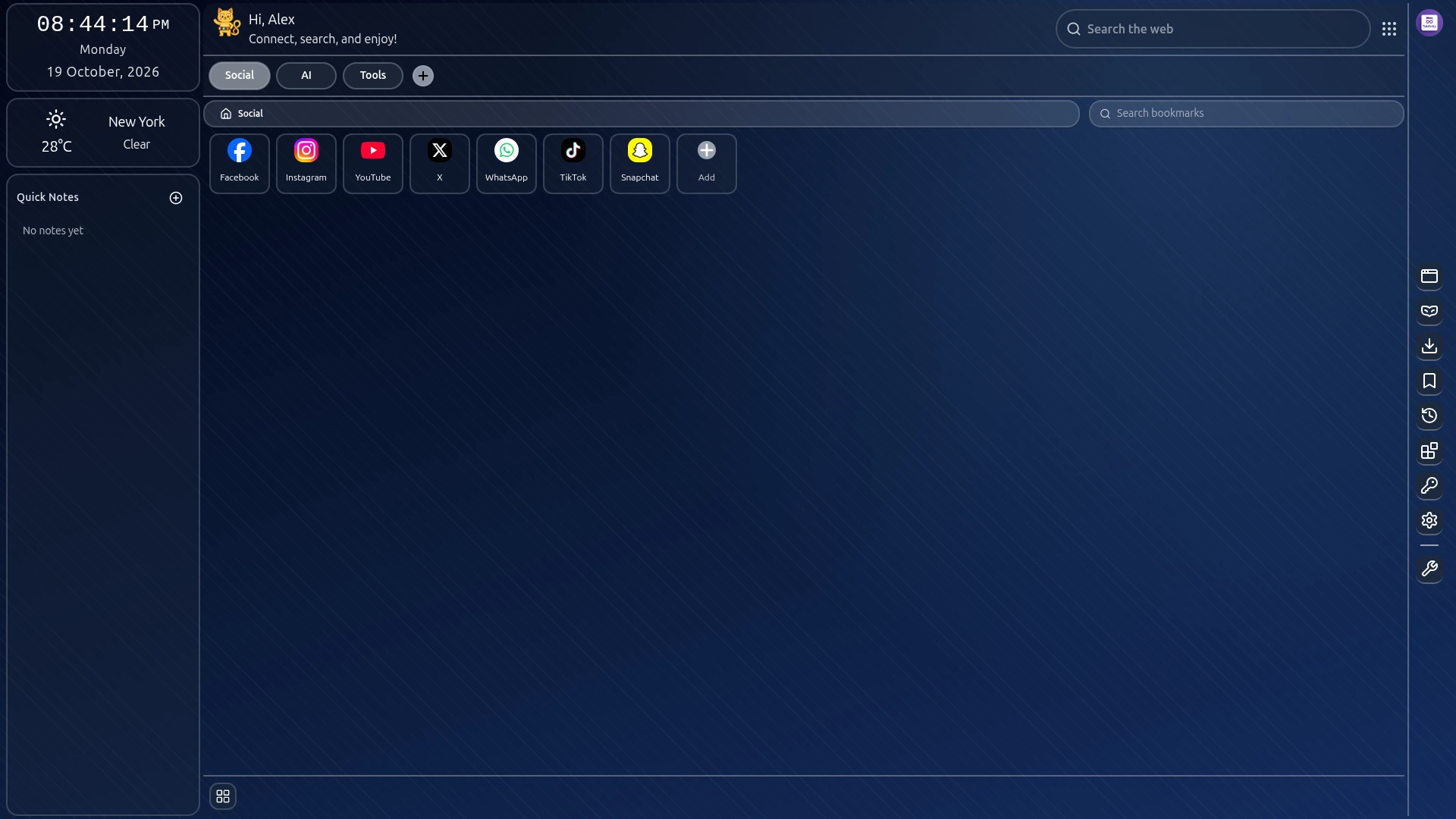
This is where Tabfinity comes in. Install the extension and Chrome's new tab becomes a personal browser workspace: tabs hold folders, folders hold bookmarks, and both are yours to arrange with drag and drop. Reorder anything by dragging it; give a bookmark a custom icon and a one-line description so it reads at a glance.
Nothing is copied out of Chrome to do this. The workspace's folders are ordinary Chrome bookmarks in a folder in your own bookmark tree, so the organizing you do on the new tab shows up in the bookmark manager, in Chrome Sync, and in every sign-in of your browser.
Keeping it clean
A system survives on small habits. Save to where it belongs in the first pass. Search instead of hoarding: your own bookmarks are findable by title or address straight from the new tab, so a common page does not need three copies in three folders. And once a season, delete the dead ends: a bookmark list you can trust is shorter than one you cannot.