 Tabfinity
BookmarksBy the Tabfinity team ·
Chrome bookmark essentials: search, sync, and folders explained
Where Chrome stores bookmarks, how search and sync actually work, and when a workspace view beats plain folders.
Where Chrome stores bookmarks
Chrome keeps your bookmarks as a tree: the bookmark bar at the top, then folders such as Other bookmarks and any structure you have built under them. The tree is file data inside your Chrome profile on your machine, in a format any folder view in the browser can read back.
That standard shape is the foundation everything else stands on: whatever you build on it with folders today survives in the bookmark manager, in a new profile you copy it to, and in anything that reads Chrome bookmarks.
Bookmark search and folder paths
Chrome's own bookmark search lives in the bookmark manager, one Ctrl+Shift+O away: type a title and it finds the entry and shows which folder it sits in.
The idea also belongs where you already look. Tabfinity's new tab search reaches your own bookmarks by title or address, with the folder each result lives in shown next to it, so a common name resolves to the right card. When search is one keystroke away, a perfectly pruned folder tree stops being the price of finding anything.
Read next: How the workspace search works
Sync across devices, and to your other sign-ins
Sign into Chrome on a second computer with sync on, and your bookmarks follow. The tree is Chrome's data, carried by Chrome Sync; nothing in between needs to move it.
This is why a bookmark organizer's storage choice matters. One that lives outside the tree has to build and operate its own sync, and your data ends up wherever that service keeps it. Tabfinity stores its workspace as a folder inside your own tree, so Chrome Sync carries it with the rest of your bookmarks: no Tabfinity account, nothing to configure, and the same folders on every computer you sign into Chrome on.
Read next: How sync works, in the FAQ
When folders are not enough
Past a certain size, folders search fine but read poorly: you can still find one bookmark, but you cannot see the shape of what you keep. That shape is what the flat list never shows: which areas of the web you actually use, and where everything belongs.
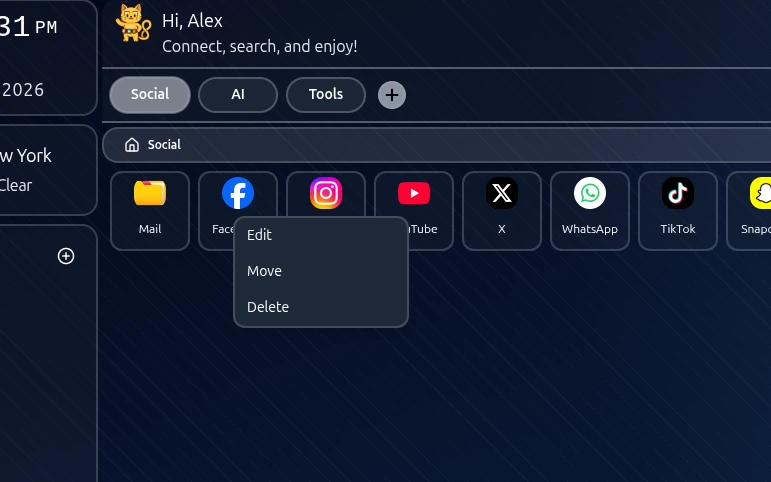
A workspace view gives the shape back: your bookmarks presented as tabs and folders on the page you open most, with drag and drop to rearrange them on sight. And because it is a view of the same tree, none of it asks you to move data; the organizing you do on the new tab is the organizing Chrome itself stores.
Read next: What the full workspace covers